Micro-Racer-Guides
Micro Racer Flashing Guide
Navigation
This guide will walk you through flashing firmware to your Micro Racer using the Espressif Flash Download Tool.
Prerequisites
- Download the Espressif
Flash Download Toolfrom Espressif Documentation - Download the latest Micro Racer firmware from GitHub Releases
- USB-C cable to connect your Micro Racer to your PC
Step-by-Step Flashing Process
1. Launch the Flash Download Tool
- Open the Espressif Flash Download Tool
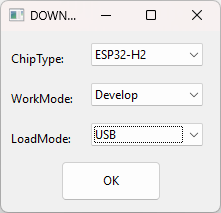
- In the tool interface, configure the following settings:
- Chip Type: Select
ESP32H2 - WorkMode: Select
Develop - LoadMode: Select
USB
- Chip Type: Select
2. Configure the Firmware File
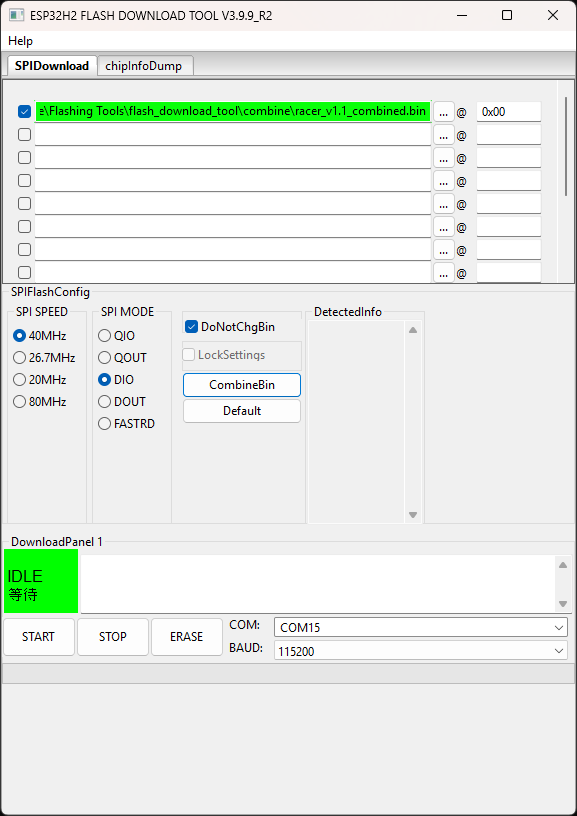
- Click the
...button next to the file path field - Navigate to and select your firmware file (.bin file)
- Set the address to
0x0(zero x zero) - Ensure the file path and address are correctly displayed
3. Prepare Your Micro Racer
- Ensure the battery is connected to your Micro Racer
- Switch the car to ON position
- Connect your Micro Racer to your PC using a USB-C cable
- Important: If the connection doesn't work initially, try flipping the USB-C connector - sometimes the orientation matters
- Wait for Windows to recognize the device and install drivers if needed
4. Select the COM Port
- In the Flash Download Tool, look for the COM port dropdown
- Find the COM port that your Micro Racer enumerated to (it will typically show as a new COM port when connected)
- Select the correct COM port from the dropdown menu
5. Flash the Firmware
-
Double-check all settings:
- Chip Type: ESP32H2
- Correct firmware file selected
- Address set to 0x0
- Correct COM port selected
-
Click the Start button to begin the flashing process
-
Wait for the flashing process to complete - you should see progress indicators and success messages
-
Important: When the flashing tool shows "Finished", you need to restart your Micro Racer by toggling the power switch OFF and then back ON
Troubleshooting
- Connection Issues: Try flipping the USB-C connector if the device isn't recognized
- Wrong COM Port: Check Device Manager in Windows to see which COM port the device is using
- Flash Fails: Ensure the Micro Racer is in the correct mode and try disconnecting/reconnecting the USB cable
- Driver Issues: Make sure you have the latest USB drivers installed for your system
Success
Once flashing is complete and the tool shows "Finished":
- Restart your Micro Racer by toggling the power switch OFF and then back ON
- Disconnect the USB cable
- Your Micro Racer should now be running the new firmware and ready to use